

How to Build a Shopify Store in Saudi Arabia
This article may contain affiliate links. If you purchase through these links, we may earn a commission at no extra cost to you. This helps support our independent reviews.
Key Takeaways
- Shopify offers a 3-day free trial followed by $1/month for the first 3 months — no credit card required to start.
- Shopify Payments is NOT available in Saudi Arabia — use Tap Payments to accept Mada, STC Pay, and Apple Pay.
- You must configure 15% VAT (ZATCA-compliant) and use an app like Marmin for e-invoicing.
- Aramex and SMSA shipping can be integrated via the OTO app for domestic delivery.
- Always test your store with a test order, verify RTL Arabic layout, and confirm SSL before going live.
Why Shopify for E-Commerce in Saudi Arabia?
Saudi Arabia's e-commerce market is projected to exceed $13 billion by 2027. Shopify powers over 4.8 million stores worldwide and is the most popular hosted e-commerce platform for a reason: it handles hosting, security, and PCI compliance so you can focus on selling.
For Saudi sellers, Shopify offers Arabic language support (via the Translate & Adapt app), multiple currency options including SAR, and a growing ecosystem of apps built for the MENA market. The platform scales from a single-product store to a multi-million SAR operation without switching systems.
However, Shopify Payments is not yet available in Saudi Arabia, which means you will need a third-party payment gateway like Tap Payments or Moyasar. This guide walks you through every step — including the Saudi-specific configurations most tutorials skip.
1Step 1 — Sign Up for Shopify
Getting started takes less than 5 minutes. Shopify currently offers a 3-day free trial, then just $1/month for the first 3 months — no credit card required to begin.
- Go to shopify.com and click "Start free trial."
- Enter your email address, create a password, and choose a store name (this becomes your-store.myshopify.com — you can add a custom domain later).
- Answer the onboarding questions: what you plan to sell, whether you are already selling, and your current revenue. These help Shopify personalize your dashboard but do not lock you into anything.
- Select your country as Saudi Arabia. This sets your default currency to SAR and applies the correct tax region.
- You will land on your Shopify admin dashboard. No credit card is needed until the free trial ends.
Pro Tip: Use a business email (not personal Gmail) when signing up. It looks more professional on order confirmations and helps if you need to contact Shopify support later.
2Step 2 — Understand the Shopify Dashboard
Before customizing anything, take 10 minutes to explore the admin. Understanding the layout saves hours later.
- The left sidebar is your command center: Home, Orders, Products, Customers, Content, Analytics, Marketing, Discounts, and Settings.
- Home shows your setup guide checklist — Shopify tracks your progress and prompts next steps.
- Orders is where all incoming purchases appear. You can fulfill, refund, and archive orders here.
- Products is where you add items, manage inventory, set prices, and organize collections.
- Settings (bottom-left) is the most important section for Saudi sellers — this is where you configure payments, shipping, taxes, domains, and legal policies.
Pro Tip: Bookmark your admin URL (your-store.myshopify.com/admin). The Shopify mobile app also gives you full admin access on the go.
3Step 3 — Choose & Customize Your Theme
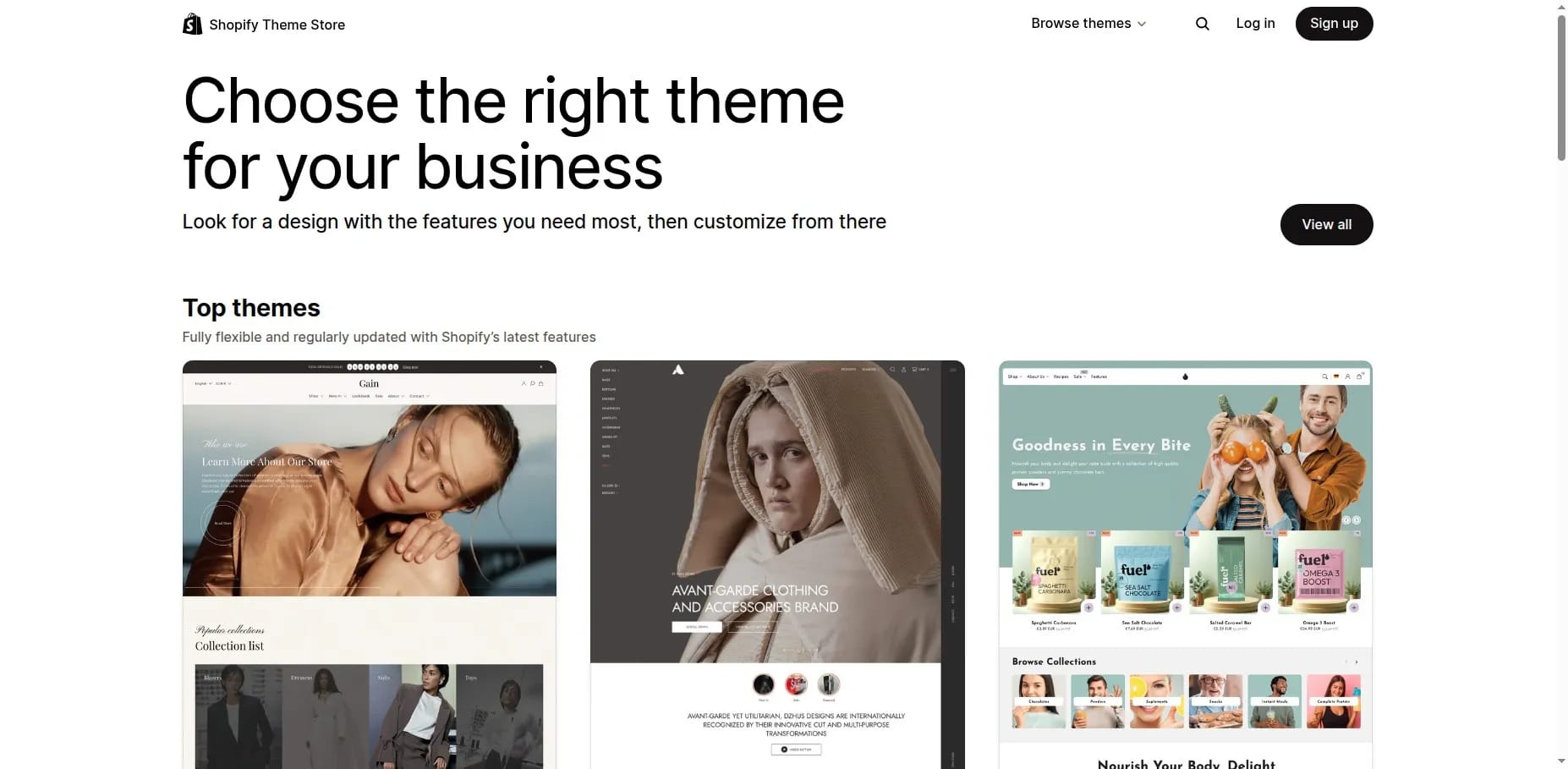
Your theme controls how your store looks. Shopify's Theme Store has 200+ themes (12 free, rest paid $180–$400). For new stores, we recommend starting with Dawn — Shopify's default free theme.
- Go to Online Store → Themes in your admin sidebar.
- Click "Explore free themes" or visit the Shopify Theme Store for premium options.
- Preview themes before installing. Look for: mobile responsiveness, page load speed, and built-in sections that match your product type.
- Click "Customize" to open the visual drag-and-drop editor. You can change colors, fonts, layout sections, and add content blocks without writing code.
- For Arabic RTL support, install the Translate & Adapt app and add this CSS snippet to your theme's custom CSS: html[lang="ar"] '{' direction: rtl; text-align: right; '}'
Pro Tip: Do not buy a premium theme until you have at least 50 orders. Dawn is fast, clean, and fully featured. You can always switch themes later without losing products or orders.
4Step 4 — Add Your Products
Products are the core of your store. Shopify supports physical goods, digital downloads, services, and gift cards.
- In your Shopify admin, go to Products → Add product.
- Upload product images — use high-quality photos (minimum 2048x2048 pixels). Shopify auto-compresses and serves WebP format. Add at least 3–5 images per product.
- Set inventory tracking: enter SKU, barcode (if applicable), and available quantity. Enable "Track quantity" to get low-stock alerts.
- Add variants if your product comes in different sizes, colors, or materials. Each variant can have its own price, SKU, and inventory count.
- Scroll to the SEO section at the bottom. Edit the page title and meta description — include your main keyword and keep the title under 60 characters.
- Organize products into Collections (e.g., "New Arrivals," "Best Sellers," "Abayas"). Collections can be manual or automated based on tags, price, or vendor.
Pro Tip: Write product descriptions that answer the top 3 questions a buyer would ask. Include dimensions, materials, care instructions, and shipping time for Saudi customers.
5Step 5 — Set Up Payment Gateway
This is the most critical Saudi-specific step. Shopify Payments is NOT available in Saudi Arabia, so you must use a third-party payment provider.
- Go to Settings → Payments in your Shopify admin.
- Under "Payment providers," click "Choose a provider" and search for Tap Payments — the most widely used gateway in Saudi Arabia.
- Search for and install Tap Payments — the leading payment gateway for Saudi Arabia supporting Mada, STC Pay, and Apple Pay.
- Connect Tap Payments to Shopify by entering your API keys (found in your Tap dashboard under Developers → API Keys).
- Tap Payments supports: Mada debit cards, Visa/Mastercard, Apple Pay, STC Pay, and Tabby (buy now pay later). Fees are typically 2.5% + 1 SAR per transaction.
- Enable Cash on Delivery (COD) under "Manual payment methods" — still very popular in Saudi Arabia, accounting for roughly 30% of e-commerce transactions.
Shopify Payments is not available in Saudi Arabia. You must use a third-party gateway like Tap Payments, PayTabs, or HyperPay. This adds a 2.0% fee on Basic, 1.0% on Grow, or 0.6% on Advanced — on top of the gateway's own fees.
6Step 6 — Configure Shipping Zones & Rates
Saudi customers expect fast, affordable delivery. Shopify lets you set flat rates, weight-based rates, or real-time carrier rates.
- Go to Settings → Shipping and delivery in your Shopify admin.
- Create a shipping zone for Saudi Arabia. You can segment by region (Riyadh, Jeddah, Eastern Province, etc.) with different rates.
- Set your rates: flat rate (e.g., 25 SAR nationwide), free shipping over a threshold (e.g., free over 200 SAR), or weight-based pricing.
- For carrier integration, install the OTO app from the Shopify App Store. OTO connects you to Aramex, SMSA, DHL, and J&T Express with auto-generated waybills and tracking.
- For automated shipping, install the OTO app from the Shopify App Store — it connects Aramex, SMSA, SPL, and J&T Express in one integration.
Pro Tip: Offer free shipping on orders over 200 SAR. Data shows this increases average order value by 15–25% in the Saudi market.
Ready to Start Your Shopify Store?
3-day free trial, then just $1/month for 3 months. No credit card required.
Start Free Trial7Step 7 — Set Up 15% VAT (ZATCA Compliance)
All businesses selling in Saudi Arabia must charge 15% VAT and comply with ZATCA (Zakat, Tax and Customs Authority) e-invoicing regulations.
- Go to Settings → Taxes and duties in your Shopify admin.
- Click on Saudi Arabia under your tax regions. Set the VAT rate to 15%.
- Enable "Include tax in prices" — Saudi consumers expect to see the final price including VAT, not a price-plus-tax model.
- Register for a VAT number with ZATCA at zatca.gov.sa if your annual revenue exceeds 375,000 SAR (mandatory) or 187,500 SAR (voluntary registration).
- For ZATCA Phase 2 e-invoicing compliance, install the Marmin app — it generates compliant XML invoices with QR codes that integrate directly with ZATCA's Fatoorah platform.
Pro Tip: Even if you are below the mandatory VAT threshold, register voluntarily. It adds credibility, allows you to reclaim input VAT, and avoids a rush when you cross the threshold.
8Step 8 — Connect a Custom Domain
A custom domain (e.g., your-brand.com.sa) looks professional and builds trust. You can buy through Shopify or connect an existing domain.
- Go to Settings → Domains in your Shopify admin.
- If buying new: click "Buy new domain" — Shopify domains start at $14/year for .com. For .com.sa, you will need to register through a Saudi registrar like Saudi NIC.
- If connecting an existing domain: click "Connect existing domain" and enter your domain name.
- In your Shopify admin, go to Settings → Domains → Connect existing domain. Enter your domain and click Connect.
- Wait for DNS propagation (usually 1–48 hours). Shopify automatically provisions a free SSL certificate once the domain is verified.
Pro Tip: Always use a .com or .com.sa domain for Saudi stores. Avoid obscure TLDs — they hurt trust and can lower ad click-through rates.
9Step 9 — Install Essential Apps
Shopify's App Store has 13,000+ apps. For a Saudi store, these five are essential from day one:
- Install Marmin: ZATCA Invoice with QR — mandatory for Saudi e-invoicing compliance. It auto-generates QR-coded invoices that sync with ZATCA Phase 2.
- Install OTO — multi-carrier shipping aggregator connecting Aramex, SMSA, SPL, and J&T Express with one-click label generation.
- Install Tap Payments — enables Mada, STC Pay, and Apple Pay at checkout for Saudi customers.
- Install Shopify Translate & Adapt — free app for bilingual Arabic/English storefronts with side-by-side editing.
- Install Sufio — beautifully designed ZATCA-compliant PDF invoices with automatic VAT calculations.
Pro Tip: Do not install more than 8–10 apps total. Each app adds JavaScript that slows your store. Remove any app you are not actively using.
10Step 10 — Launch Checklist
Before removing your store password and going live, run through this checklist:
- Place a test order using your payment gateway's test mode. Verify it appears in Orders in your Shopify admin.
- Verify ZATCA invoice: if using Marmin, confirm the test order generates a compliant e-invoice with a valid QR code.
- Check RTL Arabic layout: switch your store to Arabic and browse every page. Look for text alignment issues, overlapping elements, and broken navigation.
- Confirm SSL is active: your URL should show a padlock icon. Shopify provides free SSL but it only activates after your custom domain is verified.
- Review legal pages: ensure you have Privacy Policy, Terms of Service, Refund Policy, and Shipping Policy. Shopify can auto-generate templates under Settings → Policies.
- Test mobile experience: over 78% of Saudi e-commerce traffic comes from mobile. Check product pages, checkout flow, and payment on both iOS and Android.
- Set up Google Analytics 4 and the Facebook Pixel for tracking. Go to Online Store → Preferences to add your tracking codes.
Pro Tip: Share your store URL with 5–10 trusted people before the public launch. Fresh eyes catch issues you have been staring past for days.
Shopify Pricing Plans (2026)
After your 3-day free trial and 90-day $1/month period, you'll need to choose a plan. Visit Shopify Pricing for the latest details.
For most Saudi stores starting out, the Basic plan at $39/month is sufficient. Upgrade to Grow when the 1% lower transaction fee savings exceed the $66/month price difference — that happens around $6,600/month in revenue through third-party gateways.
Choose Your Shopify Plan
All plans include a free trial. CTA buttons link to Shopify pricing.
Basic
billed monthly
For solo entrepreneurs. $1/month for first 3 months.
- 10 inventory locations
- 24/7 chat support
- 2% third-party payment providers
- In-person selling by phone or POS device
- Earn 1% back on sales
Grow
billed monthly
For small teams scaling up. $1/month for first 3 months.
- 10 inventory locations
- 24/7 chat support
- 1% third-party payment providers
- 5 staff accounts
- Local storefronts by market
- Earn 1% back on sales
Advanced
billed monthly
For global reach with advanced features.
- 10 inventory locations
- Enhanced 24/7 chat support
- 0.6% third-party payment providers
- 15 staff accounts
- Local storefronts by market
- Custom report builder
- Earn 1% back on sales
All plans include unlimited products, SSL certificate, and 24/7 support. Prices shown are in USD. Saudi merchants using third-party gateways (like Tap Payments) pay an additional transaction fee: 2.0% on Basic, 1.0% on Grow, 0.6% on Advanced.
Frequently Asked Questions
01Can I use Shopify in Saudi Arabia?
Yes. Shopify offers a 3-day free trial with no credit card required. After that, you pay just $1/month for the first 3 months.
02How much does Shopify cost in Saudi Arabia?
Shopify starts with a 3-day free trial, then $1/month for 3 months. After that, the Basic plan is $39/month (approximately 146 SAR). You will also pay transaction fees to your payment gateway (typically 2.5% + 1 SAR per transaction with Tap Payments) plus the 2.0% Shopify third-party fee on the Basic plan.
03Does Shopify support Arabic and RTL?
Shopify supports Arabic through the free Translate & Adapt app. Most modern themes (including Dawn) support RTL layout. You may need to add a small CSS override for perfect RTL rendering: html[lang='ar'] '{' direction: rtl; text-align: right; '}'
04What payment methods can Saudi customers use?
Through Tap Payments, your customers can pay with Mada debit cards, Visa, Mastercard, Apple Pay, STC Pay, and Tabby (buy now pay later). You should also enable Cash on Delivery, which still accounts for about 30% of Saudi e-commerce transactions.
05Do I need a commercial registration to sell on Shopify in Saudi Arabia?
To accept payments through Tap Payments or any Saudi payment gateway, yes — you need a valid Commercial Registration (CR) from the Ministry of Commerce. You will also need a Saudi bank account (IBAN) and a valid Saudi ID or Iqama.
06How do I handle shipping in Saudi Arabia?
Install the OTO app to connect with Aramex, SMSA, DHL, and J&T Express. OTO auto-generates waybills and tracking pages. Most Saudi stores offer flat-rate shipping (20–30 SAR) with free shipping over 200 SAR.
Start Building Your Shopify Store Today
Join 4.8 million merchants worldwide. 3-day free trial, $1/month for 3 months.
Start Free TrialFinal Tips for Saudi Shopify Sellers
Start with the Basic plan and the Dawn theme. Do not overspend on premium themes or apps before you have validated your product-market fit. Your first 100 orders will teach you more than any planning session.
Invest in product photography — Saudi shoppers make buying decisions based on images. A simple white background setup with good lighting outperforms even the best-written product descriptions.
Join the Saudi Shopify community on Twitter/X and Telegram. Local sellers share app recommendations, gateway updates, and ZATCA compliance tips that you will not find in Shopify's official documentation.